A rock solid dock does a lot to transform a laptop into a legitimate desktop replacement. When one of these Dell docking stations suddenly is not working as it should, productivity can slow to a crawl. This guide gives SEO focused, hands on steps for diagnosing and fixing the most common docking station and Dell docking station issues.
It is written for general readers, students, and remote workers who want practical advice without technical jargon.
Why Docking Station Problems Happen
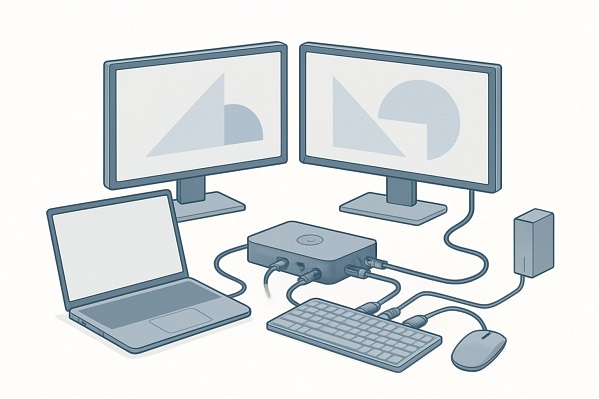
Problems with docking stations typically stem from one of three causes: hardware and drivers, connection issues, or software.
A hardware fault, a loose socket, or an outdated driver can all cause similar symptoms such as no display, unstable network connections, slow charging, or USB devices not responding at all. Understanding what is most likely wrong helps eliminate other possibilities and speeds up the fix.
Quick Checks to Start With
Start with the basics:
Make sure the docking station is receiving power and that the power LED indicator is on. Try a different wall outlet to rule out electrical issues. Inspect all cables for fraying, damage, or bent pins. If your Dell docking station uses an external power brick, confirm that it is firmly connected to both the dock and the wall outlet.
Next, restart both the laptop and the dock:
Disconnect the dock from the laptop and unplug it from power. Wait at least 30 seconds, then reconnect the power first and attach the laptop afterward. Many temporary issues are resolved simply by power cycling the unit.
Display Problems and Multi Monitor Setups
If one or more external monitors are blank or flickering, begin by checking that all monitor cables are securely connected to the docking station.
If possible, swap HDMI or DisplayPort cables to rule out a faulty cable. Also verify that the monitor itself is set to the correct input source.
On Windows laptops, open Display Settings and manually detect external displays. For Thunderbolt or USB C docking stations, confirm that the laptop recognizes the dock as a video output source.
If only one monitor works, confirm that the docking station supports the combined resolution and refresh rate of all connected displays. Exceeding the dock’s supported limits can prevent additional monitors from working.
USB and Peripheral Issues
If USB devices are not recognized when plugged into the dock, test them directly on the laptop. If the device works when connected directly but not through the dock, the issue may lie with the docking station’s USB ports or its internal USB hub.
Updating the docking station firmware and the laptop’s USB drivers often resolves recurring issues.
For intermittent keyboard or mouse problems, connect the device directly to the laptop to identify whether a specific dock port is causing the issue. Some docking stations disable USB ports to conserve power, so review your operating system’s power management settings and disable USB power saving if necessary.
Network Connectivity via the Dock
If Ethernet connectivity through the docking station is slow or not working, start by trying a different Ethernet cable. Confirm that the router or network switch is functioning correctly.
Update the laptop’s network adapter driver. Some Dell docking station models use a network controller that differs from the one built into the laptop and requires a separate driver from Dell.
If the connection seems limited or unstable, release and renew the IP address using operating system network tools.
Charging and Power Delivery Problems
If the laptop does not charge while connected to the docking station, plug the AC adapter directly into the laptop first to verify that the laptop’s charging system works.
Some business class docking stations provide lower wattage and may not charge high performance laptops under load. Use the original laptop charger to confirm that charging works normally.
Inspect the docking station’s power adapter for damage, as a faulty adapter can prevent proper power delivery.
Firmware and Driver Updates
Outdated firmware and drivers are a common cause of docking station issues.
Dell regularly releases firmware updates for docking stations along with driver updates for USB, video, and network components. Visit Dell Support and confirm that your dock model has the latest firmware installed, along with current system drivers for your laptop.
Run updates while the laptop is connected to the dock and has a stable internet connection to avoid interruptions.
Advanced Troubleshooting Steps
If basic troubleshooting does not resolve the issue, isolate the problem by swapping components.
Test the docking station with a different laptop, or test the same laptop with another dock. This helps determine whether the issue lies with the dock or the laptop itself.
Check the laptop BIOS for Thunderbolt or USB C security settings that may block docking stations until they are approved. On Windows systems, open Device Manager and look for error indicators, or run the Hardware and Devices troubleshooter.
If hardware failure is suspected, note any unusual noises, smells, or visible damage. Continued problems after firmware and driver updates often indicate that the docking station needs professional repair or replacement.
When to Replace or Repair a Docking Station
A docking station should be replaced if multiple ports stop working, the unit overheats, or firmware updates fail to improve functionality.
For critical work setups, keeping a basic USB C hub or spare dock can prevent downtime. If the docking station is still under warranty, contact Dell Support to request a repair or replacement.
Good Advice for Avoiding Future Issues
Keep firmware and drivers up to date at all times.
Use high quality cables and avoid daisy chaining docking stations with underpowered hubs. Maintain spare cables so you can quickly test different connections when issues arise.
Keep connectors clean and avoid sharply bending cables, as repeated stress can cause internal wire damage.
Conclusion
Most docking station and Dell docking station problems can be resolved with simple checks involving power, cables, drivers, and firmware.
Isolate the faulty component, update software, and swap hardware where possible to identify the root cause. By following these steps, you can restore a stable multi device workspace with minimal downtime.
Frequently Asked Questions
How can I reset my Dell docking station?
Disconnect the docking station from both the laptop and the power source. Wait 30 seconds, then reconnect the power first and attach the laptop afterward. If available, run any Dell dock reset utility from Dell Support.
Why does my external monitor connected to the dock not display a picture?
A blank screen usually indicates a failed video handshake between the dock and the laptop, or an incorrect monitor input setting. Check cables, select the correct monitor input, update display drivers, and verify that the dock supports the monitor’s resolution.
Will a laptop firmware update help with docking problems?
Yes. BIOS and Thunderbolt firmware updates often address dock recognition and security issues on supported systems. Back up important data and follow the manufacturer’s firmware update instructions carefully.
What if my Dell docking station only charges in low power adapter mode?
Check whether the dock’s power delivery rating meets your laptop’s requirements. Many high performance laptops require 65 to 130 watts. If the dock supplies less power, charging may be slow or may not occur at all.
Is it worth repairing an old docking station?
If the dock is out of warranty and multiple ports have failed, replacement is usually more cost effective than repair. If only one port is faulty and the dock is a higher end model, contacting Dell Support for repair options may be worthwhile.